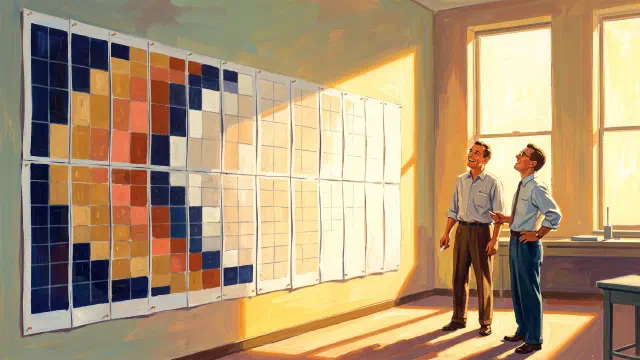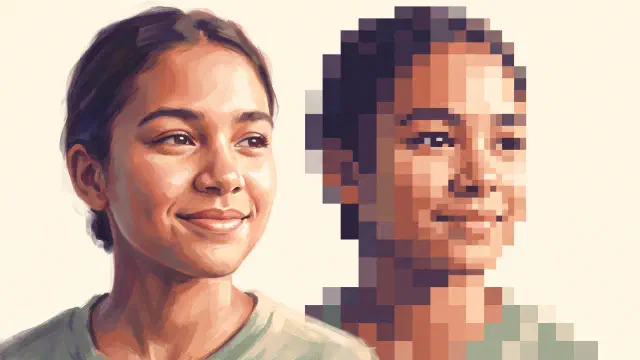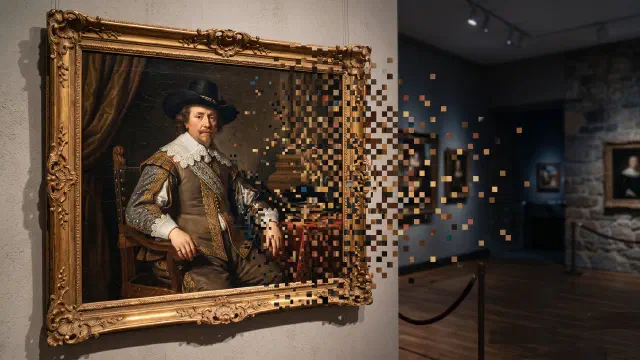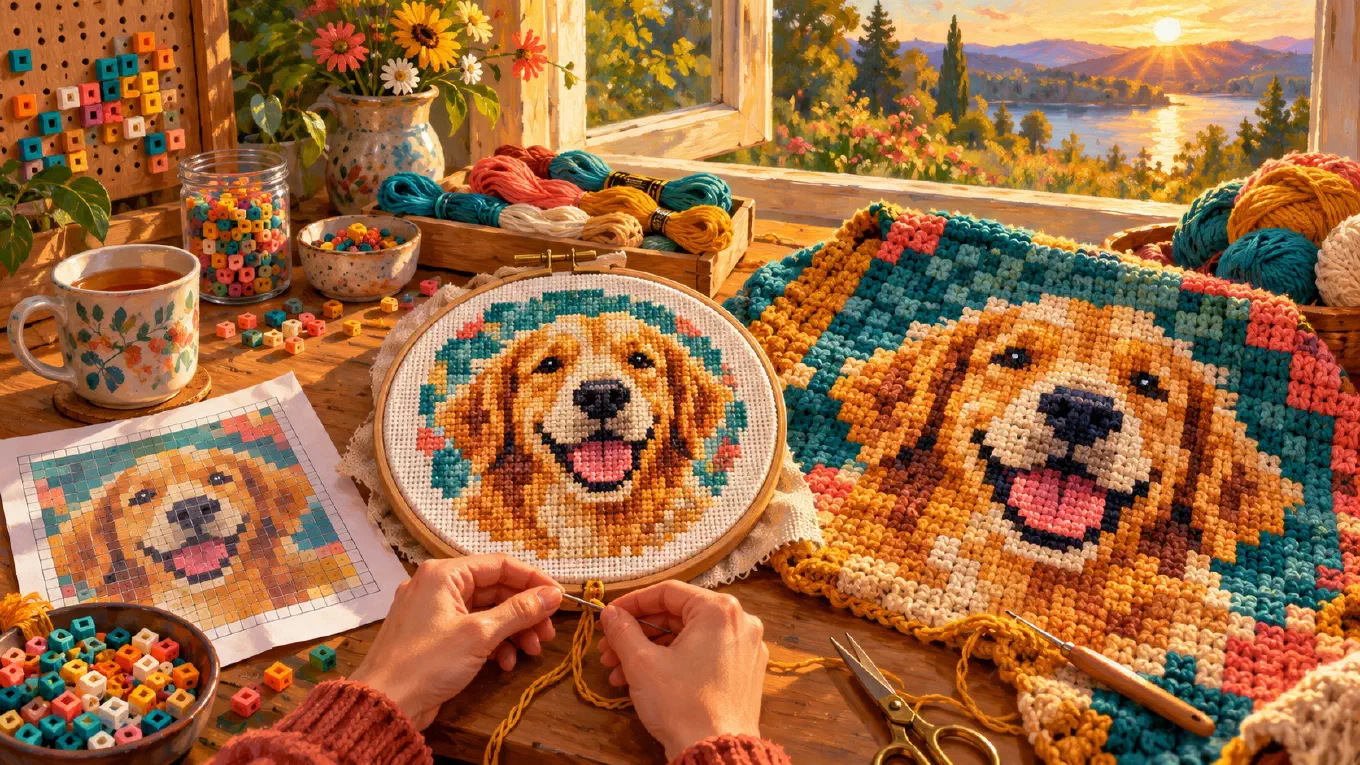
To turn a photo into pixel art with a grid, choose the grid from your material first, then make the picture fit it. Count the stitches, beads, studs, or blocks the finished piece will have. Crop to that shape, set the cells to match, cut the colors to what you own, keep dithering off, and draw lines between the cells. Every square becomes one unit you can count and copy by hand.
That last part is the whole job. A pixelated photo you look at and a pixelated photo you build are different things. The first only has to look good. The second has to survive forty hours of someone counting squares with a needle, a hook, or a pair of tweezers in their hand. So the useful question is not how to make a chart. It is what ruins one, and how to avoid each of those things on purpose.
If you want the general method for pixelating a photo, resolution, color quantization, palettes, and dithering explained step by step, read how to turn a photo into pixel art. This piece is about the version you make with your hands.
What a pixel art grid actually is
A pixel art grid is a picture where every cell is exactly one square of one flat color, with lines drawn between the cells so you can count them. That is the same object as a cross stitch chart, a crochet graph, a fuse bead pattern, or a LEGO mosaic plan. The craft changes. The rule does not: one square on the grid is one unit of the thing you are making.
This matters because a grid is a contract. If the chart says a row has 64 squares, the row has 64 stitches. If two squares are slightly different shades that you cannot tell apart, you will pick the wrong thread. If the chart has a single stray square of a seventh color in the middle of a cheek, someone will have to cut a new length of floss for one stitch. Everything below is about writing a contract you can keep.
Mistake one: starting from the photo instead of the material
The most common way to ruin a chart is to pixelate the photo first and work out the size later. You end up with a beautiful grid that is twice as big as the canvas, or a blanket that would take a year.
Invert it. Start from the finished object and work backwards to the number of cells. Every craft has a gauge, the number of units per inch or per centimeter, and the arithmetic is one multiplication.
Aida cloth, the standard fabric for counted cross stitch, is sold by count, and a 10 count Aida “would have 10 squares per linear inch.” So a design 70 stitches wide on 14 count fabric comes out 5 inches wide. The LEGO Art mosaics measure 48 by 48 studs, built on nine 16 by 16 baseplates, a little over 40 centimeters square. A Minecraft map has an image size of 128 by 128, one block per pixel, which is why map art is planned in 128 block squares. In crochet, the finished size depends on your yarn and hook, so crochet a small swatch, measure it, and do the same multiplication.
Once you know the cell count, set it. In Koadro, the resolution slider counts cells along the longest side of the image, the short side follows the photo’s proportions, and the exact grid, columns by rows, is shown right under the slider. So crop first. The crop tool has fixed ratios and a custom ratio where you type exact numbers. Crop to 1:1 and set 48 cells, and you get a 48 by 48 grid. Crop to 4:3 and set 64 cells, and you get 64 by 48.
With Premium, Koadro also has a Real size mode that does the arithmetic for you: you enter the canvas width and the size of one pixel in centimeters or inches, and it computes the grid from those. That is useful when the material is the fixed thing, for example a LEGO stud or a 5 millimeter bead.
Mistake two: too many colors
Every color in a chart is a real object you have to buy, sort, and switch to. A skein of floss. A ball of yarn. A bag of beads. A pile of 1 by 1 tiles. In a photo, a hundred colors is nothing. In a crochet blanket, every color change is a strand you carry or a tail you weave in later.
So cut harder than looks necessary. A portrait often reads with eight to twelve colors. A pet or a simple object can land in five or six. Start low, add one color at a time, and stop the moment the subject holds together. This step is called color quantization, reducing the number of distinct colors while keeping the image as close to the original as possible, and for a chart it is where most of the labor is decided.
Koadro’s Colors slider sets the count directly, and its adaptive palette reads the colors from your own photo, so the shades it keeps are the ones the photo actually has. The free tier covers the range a hand-made chart normally needs. Premium raises the ceiling for anyone printing or displaying the art rather than stitching it.
Mistake three: dithering a chart
Dithering scatters pixels of two colors so the eye blends them into a third, which is how a small palette fakes a smooth gradient on a screen. On a screen it is lovely. In a chart it is a trap. Every scattered pixel is an isolated square of a different color, which means a separate stitch, a separate bead, a separate color change, over and over, across the whole gradient.
For anything you will build by hand, turn dithering off. In Koadro that is the Texture control set to Flat, which gives you solid areas of color instead of a speckle. If a sky bands into stripes, that is fine. Bands are easy to stitch. Speckle is not.
Mistake four: a grid you cannot read
A chart without lines between the cells is a picture, not a pattern. Your eye slides across a run of nine identical squares and counts eight.
Koadro has two free effects for exactly this. Lines draws thin gray lines between every cell, a middle gray that stays visible on dark art and light art alike, so you can count across a row. Outlines draws a darker line only where two neighboring colors meet, like the ink of a coloring page, so the borders of each color area jump out. They work together, with the outlines drawn bolder than the lines so the two read apart. Both follow whatever tile shape you use, and both are part of the exported image.
To read the chart while you work, Koadro opens the art full screen, where you can zoom in with two fingers and rotate it in quarter turns to match the way you hold your project.
What Koadro does not do for chart makers
Here is the honest list, so you know where the app stops and your pencil starts.
Koadro does not number the rows or the columns. It does not draw a heavier line every ten squares, a convention most printed cross stitch charts use so stitchers can keep their place. It does not count how many squares use each color, so it cannot tell you how much floss or how many beads to buy. It does not make a symbol chart with a key, the format where every square carries a symbol that maps to a thread number. It does not show color codes. It does not write row by row instructions for corner to corner crochet. And it has no built-in thread, yarn, bead, LEGO, or Minecraft block palettes. Its palettes are an adaptive one read from your photo and a set of named fixed palettes, like Mono, Noir, Sepia, Nord, CGA, and PICO-8.
What you can do is build your own palette. Custom palettes, part of the one-time Premium purchase, let you pick each color by hand on a color wheel and name the palette, and the photo then uses only those colors. With a fixed palette in the Faithful palette mode, each cell snaps to the nearest color you picked. Sample your actual threads or blocks by eye, and the chart is drawn in your materials rather than in colors you cannot buy. The colors are picked on a wheel, not typed in as codes, so the match is by eye.
For the rest, the low tech fix works well. Print the chart, number every tenth row and column in the margin, and rule a heavier line every ten squares yourself. If you need an automatic symbol chart and a shopping list of thread numbers, a dedicated cross stitch pattern program is the right tool for that final step, and Koadro is a good place to make the image you feed it.
Cross stitch from a photo
A cross stitch chart is a pixel grid where each square is one stitch. Counted cross stitch builds a picture from X-shaped stitches laid out in a tiled, raster-like pattern, and projects are “worked from a gridded pattern called a chart.” DMC, the embroidery floss maker, explains the reading convention plainly: the squares on the chart correspond to the squares of the fabric, and a color legend tells you which thread each square needs.
The workflow: pick the fabric count, multiply by the finished size you want to get the stitch count, crop and set the grid, cut the colors to the floss you have or plan to buy, keep Texture on Flat, and turn on Lines. Patterns usually mark the center, and stitchers start there to avoid counting errors, so fold your printed chart in half both ways to find it. Count each color area on the printout as you go, since Koadro will not do it for you.
Crochet: corner to corner and graphghans
In corner to corner crochet, usually called C2C, each square on the graph is one tile. As Sarah Maker’s C2C guide puts it, “each tile is made from 3 double crochet stitches, plus their corresponding 3-ch turning chain,” and “each square in the chart represents one C2C tile.” The blanket is worked in diagonal rows from one corner to the opposite one, most commonly from the bottom right to the top left.
That diagonal is why a clean chart matters so much in C2C. You read the grid at an angle, square by square, so solid color areas and visible outlines save real mistakes. Keep the color count low, because every new color in a diagonal row means another strand, and keep the grid modest. A blanket needs fewer cells than you think, since each tile is several stitches wide. Koadro gives you the graph. It does not give you the written diagonal row counts some crocheters work from, so read them off the grid as you go.
Knitting is the one craft where a square grid misleads you. A knit stitch is wider than it is tall, and Knotions puts it bluntly: “you can’t just take a counted cross stitch chart and translate it 1 for 1 in knitting.” A circle charted in squares knits up as an oval, wider than tall. If you knit from a pixel grid, stretch the photo taller in a photo editor before you pixelate it, by the ratio of your own stitch width to stitch height, so the finished piece comes out in proportion.
Fuse beads: Perler and Hama
Fuse beads are small plastic tubes “arranged into 2D designs on a pegboard, and then fused together by the application of a hot clothes iron through parchment paper.” Brands include Perler, Hama, and Nabbi, and the standard size is 5 millimeters, which keeps boards from different brands compatible. Each peg holds one bead, so each square on your grid is one bead.
Pegboards are usually square grids, but hexagonal boards exist too. Koadro can rebuild the photo in square and triangle tiles for free, and in diamond and hexagon tiles with Premium, with the grid lines following each shape. Premium also has a Beads effect that draws each cell as a round bead on a light backing, which is a good way to preview how the ironed piece will look before you place a single bead. Count your board’s pegs, and set the grid to that.
LEGO mosaics
A LEGO mosaic is a pixel grid where each stud is one cell. The LEGO Art sets, introduced in 2020, rebuild pictures in a mosaic of 1 by 1 pieces, and the first ones measure 48 by 48 studs, so a 48 cell square grid maps onto that canvas exactly.
Crop to 1:1, set 48 cells, cut the colors to the pieces you can get in quantity, and turn on Lines. If you build on different baseplates, multiply the plates by their stud count to get your number. The Real size mode in Premium can also set the pixel to the size of one stud, so a printed chart comes out the same size as the build.
Minecraft pixel art
In Minecraft pixel art, one block is one pixel. That is literal in map art: according to the Minecraft Wiki, “the default map has an image size of 128×128 and reads each block as a specific color,” so one full map is a 128 by 128 square of blocks. Flat map art, with every block at the same height, has about 61 colors to work with.
Koadro has no Minecraft block palette, and it does not tell you which block goes where. What it gives you is a clean grid in a small number of colors, which you then translate into blocks by eye. Cut the colors low, because each color is a block type you have to gather in bulk, keep Texture on Flat, and turn on Lines so you can count each row as you place it. If you have Premium, a custom palette sampled from your favorite wool, concrete, and terracotta colors gets the chart much closer to what you will actually build.
Tomodachi Life pixel art
Tomodachi Life: Living the Dream launched on April 16, 2026, for Nintendo Switch, with a new facility called the Palette House where players design clothing, food, pets, interiors, and other items through an in-game drawing interface. Community guides put the canvas at 256 by 256 and note that there is no way to import a photo. You paint everything in by hand, so a chart is the whole workflow.
A Koadro grid works as that chart: crop square, set the cell count to what you are willing to paint, cut the colors, and turn on Lines. The honest catch is the palette. The game paints from its own fixed set of color swatches, and Koadro does not know them. If you want a chart already matched to the in-game swatches, labeled by row and column so you can find each one, the free fan-made tool Living The Grids is built for exactly that, runs in the browser, and is not affiliated with Nintendo. Use it if that is your project.
Making the chart in Koadro
Koadro turns a photo into real pixel art by downscaling your actual image, not by redrawing it with AI, so every cell in the chart comes from a measured color in your photo. The workflow above maps onto it directly. Crop with fixed or custom ratios. Set the cells with the resolution slider, or with Real size in centimeters or inches on Premium. Set the colors, from the adaptive palette or a fixed one. Set Texture to Flat. Turn on Lines and Outlines. Open it full screen to check, then export.
The free tier is a complete chart maker for most hand projects: crop and rotate, every built-in palette, every texture, square and triangle tiles, the Lines and Outlines effects, and an image export with no watermark. Premium is a one-time purchase, no subscription, that adds a higher resolution and color ceiling, custom palettes, Real size mode, diamond and hexagon tiles, the Beads and Relief effects, a larger image export, and a vector PDF for printing, where every square and every line is a shape, so the chart prints sharp at any size and, in Real size mode, at the exact size you set. Everything runs on your device with no account. Koadro is on iPhone, iPad, and Mac and Android.
If what you want is a drawing grid over a photo for sketching or painting by hand, rather than pixel art, that is a different tool and a different job, covered in how to add a grid to a photo. And if you are still choosing a pixel art app at all, the best photo to pixel art apps compares the field.
The short version
A chart is a promise that one square equals one stitch, one bead, one stud, or one block. Keep the promise by working backwards from the material, cutting colors to what you own, turning dithering off, and drawing the lines. Then number the rows yourself, because no app can stand next to you while you count.