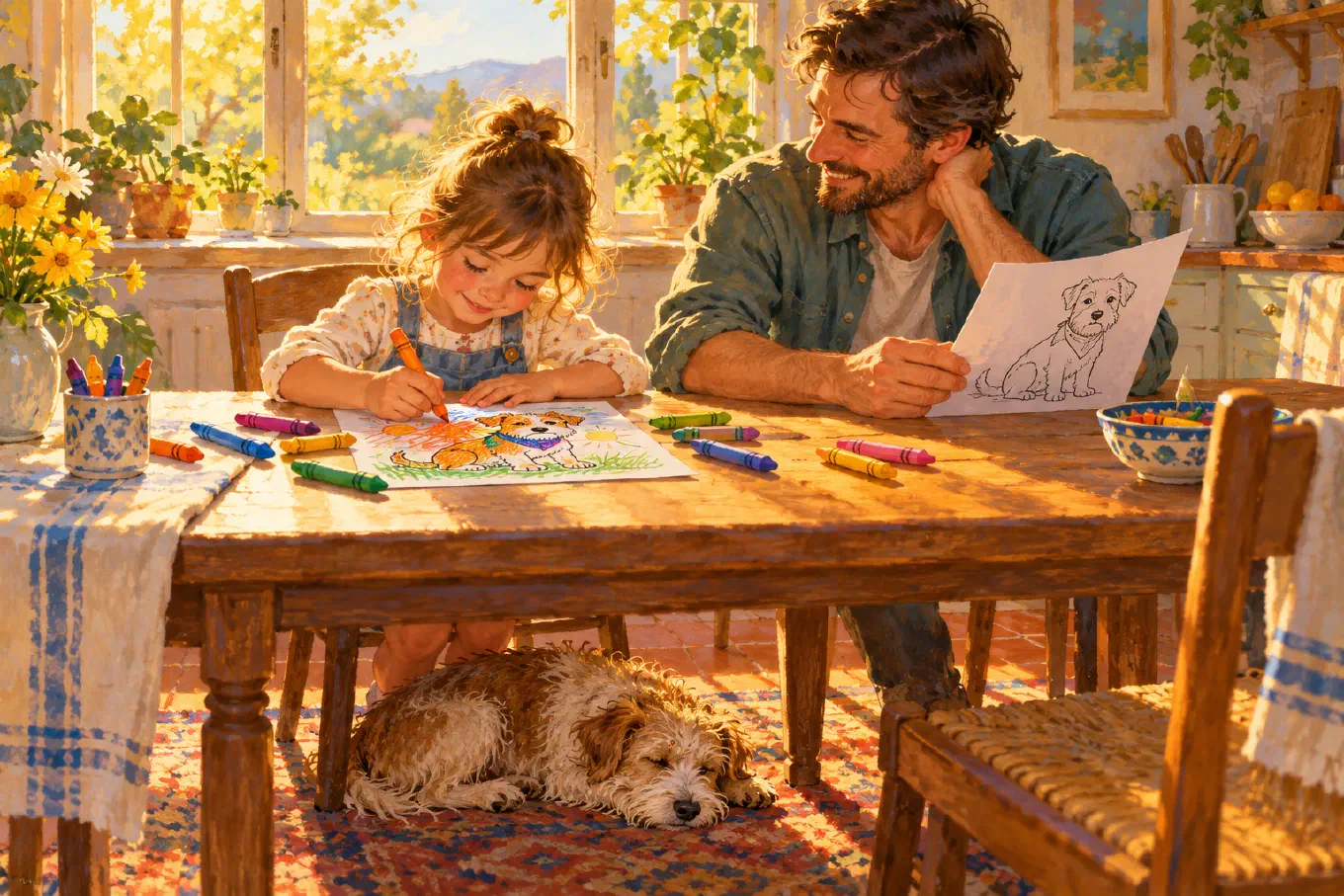
To turn a photo into a coloring page, pick a photo with one clear subject and a quiet background, crop tight, and convert it to black outlines on white with no gray shading. Close any gaps in the outlines, set the line weight for whoever will color it, and print on plain white paper. The photo and those choices matter more than the tool.
A coloring page is a stricter thing than a drawing. A line drawing only has to look good. A coloring page has to work in the hands of a four year old with a fat purple crayon. So the fastest way to learn how to make one is to look at how they fail.
What makes a coloring page fail
There are five ways a coloring page made from a photo goes wrong, and almost every disappointing result has at least two of them.
It has gray in it. Shading looks lovely on screen. On paper it fights the crayon, muddies every color laid over it, and leaves the child unsure where one area ends and the next begins. A coloring page is black lines on white and nothing else.
It has black slabs in it. The opposite mistake. Dark hair, a black dog, a shadow under a chin, or a navy sweater turns into a solid black shape that nobody can color. A coloring page outlines dark areas. It does not fill them.
The shapes do not close. Coloring happens in regions, not along lines. When an outline breaks, the region leaks into the next one, and the child has no edge to stop at. Photos are full of broken edges, because a shadow or a highlight interrupts almost every contour in real light.
The detail is wrong for the hands. Two hundred tiny shapes are a gift to an adult and a punishment to a toddler. Twelve big ones are the reverse. There is no single right amount, only the right amount for the person holding the crayon.
It is not your photo anymore. The whole point of a coloring page made from a photo is that it is your dog, your grandmother, your house. A page that resembles them is a different and lesser thing. Keep that in mind when you get to the AI tools below.
Avoid those five and the page works, almost regardless of the method.
Start with the right photo
The single biggest decision happens before any software opens. Choose a photo with one subject that separates clearly from its background: a pet on a plain floor, one child against a wall, a house against the sky, a toy on a table. Choose good light, ideally from the side, because light falling across a subject is what makes its shapes visible as separate shapes.
Avoid group shots, crowds, busy rooms, and photos taken in dim light. Every edge in the background becomes a line someone has to color around, and in dim light the subject’s own edges are too faint to find. Then crop tight to the subject before you convert anything. Everything you crop out is clutter that never reaches the page.
If you want the longer version of why some photos convert well and others turn into noise, the guide on how to turn a photo into a line drawing covers the photography side in depth. Everything there applies here, plus the coloring specific rules above.
Method 1: trace it by hand
The oldest method is still a good one. Print the photo, tape a sheet of plain paper over it on a window or a lightbox, and trace the outlines with a black pen. You decide every line, so the shapes close because you close them, dark areas get an outline instead of a fill, and the detail is exactly what you chose.
Coloring pages have always been drawn this way. In the history of the coloring book, the McLoughlin Brothers popularized the format in the 1880s with The Little Folks’ Painting Book, made in collaboration with the illustrator Kate Greenaway, and every page was an outline drawn by a person who knew it would be filled in.
The cost is time and a steady hand. For one special page, a birthday or a new pet, it is worth it. For ten pages, it is an afternoon. If you want a cleaner setup for tracing, the same lightbox and transfer techniques that move a drawing onto canvas work here, and how to transfer a photo to canvas walks through them.
Method 2: Photoshop, with Find Edges and Threshold
Photoshop can do it in a few steps. Open the photo and desaturate it, then run Filter, then Stylize, then Find Edges, which draws the edges it finds as dark lines on a light background. Then apply Image, then Adjustments, then Threshold, and drag the slider until the faint gray lines either commit to black or disappear into white.
Thresholding is the step that makes a page printable, because it turns a grayscale image into a pure black and white one with no gray left over. It is also the step that causes the black slab problem if you run it on the photo directly instead of on the edges, since every dark area in the photo becomes solid black. Run it after Find Edges, not instead of it.
What you get is a start, not a finished page. Find Edges has no idea which edges matter, so the background, the texture of a sweater, and the grain of a wooden floor all come through. Plan on spending time with the eraser removing stray marks and with the brush closing the gaps the filter left. The method is free if you already pay for Photoshop and slow if you are particular.
Method 3: AI coloring page generators
The fastest route is a web tool that does it in one click, and most of the tools ranking for this search are AI.
Fotor’s photo to coloring page tool describes itself as “powered by an advanced image-to-image AI algorithm,” is free to use, and advertises no watermark. ColorBliss offers four styles, Default, Manga, Minimal, and Ghibli, and a public demo that allows one submission per IP address every 24 hours without an account. Beyond the demo it runs on monthly credits: its pricing page lists Starter at $9 a month for 250 credits, and commercial use starts at the Artist plan, at $35 a month. App stores carry many more, and the business model is often visible in the listing. The App Store description of Coloring Book AI, ColorFilla, for example, says its free plan adds a “branded watermark on exports.”
AI output tends to be tidy, with closed shapes and no gray, which is exactly what a coloring page needs. Two trade offs come with it.
First, an image-to-image model generates a new picture guided by yours. For a generic subject, a sunflower or a sports car, nobody minds. For a specific face or a specific pet, the result can come back as a close relative rather than the real one, and that is the whole point of making a coloring page from a photo in the first place.
Second, your photo leaves your device. ColorBliss is direct about it on its own page: “Your photo is uploaded for processing, and the service attempts to delete the original when processing ends.” That is a reasonable policy, stated honestly. If the photo is of someone else’s child, it is still a decision worth making on purpose.
For a broader comparison of the app landscape, including which tools draw lines and which redraw the picture, see the best photo to sketch apps.
Method 4: Skisa
Skisa draws a photo as line art on your device, from your actual photo, with no AI redrawing it. Rendering happens on the phone, tablet, or Mac itself, so the photo is not uploaded to make the drawing. Its starting point is already close to a coloring page: a new photo opens drawn with a black Fineliner on a Plain white sheet with no shading, and the drawing appears as soon as the photo loads.
Here is the coloring page workflow, using the names you will see in the app.
1. Bring in the photo. Tap Choose a photo, then Gallery or Camera. Under Image, use Crop to cut away everything but the subject and Rotate if it came in sideways. If the photo is dim or flat, drag Enhance up. It stretches the photo’s contrast and lifts the edges hidden in shadows, which gives the faint outlines of a dark photo something to grab onto.
2. Set the detail for the hands. The Detail slider decides how many lines get drawn, and it adds and removes whole lines in order of importance, so turning it down drops the weakest, least important lines first and keeps the strongest contours. Low for a toddler, high for an adult.
3. Set the line weight. Thickness sets how heavy the outlines are. Turn it up for young children and big crayons, and down for fine pens and colored pencils. Then turn Pressure down: at the bottom every line is drawn at the same width, the even, printed outline of a store bought coloring book.
4. Close the shapes. Continuity splices broken line fragments back into one line, so a contour interrupted by a highlight or a shadow comes back whole. This is the slider that turns a drawing into regions a child can fill. Push it up until the main shapes read as closed, and close any last gap with a pen after printing.
5. Pick a blunt instrument for small hands. Under Type, the free Marker draws broad, opaque lines at the same weight on purpose, the most coloring-book look in the app. For an adult page, Fineliner keeps lines fine and faithful.
6. Keep it free of gray. Leave Hatching off, which is how a new drawing starts. If you tried a shading technique, tap the highlighted one again to turn it off. Keep Surface on Plain with White, and the line Color on Graphite, which is the black ink.
7. Export and print. Tap Export, then Save or Share depending on your device, and print the image on plain white paper. You can leave Transparent background off: it saves a PNG with nothing behind the lines, which is for layering the drawing in another app, and printing does not need it.
Two Premium options earn their place here. Dotted under Stroke draws the outlines as an even row of dots, which turns the same photo into a tracing worksheet, the kind a child follows with a pencil. And Save template keeps your coloring page settings so the next photo is one tap away from the same look, which matters when you are making a whole booklet of family photos.
What is free and what is Premium
The free version makes a complete coloring page with no watermark and no ads: six instruments including Marker and Fineliner, all six papers, every slider including Detail, Thickness, Pressure, and Continuity, and export. Free exports are smaller, which works for a screen or a small print, and the free version keeps a limited number of sketches at once.
Skisa Premium is a one-time purchase, with no subscription. It adds full-resolution export, which is what holds up on a full printed page, unlimited sketches, the Dotted and Dashed strokes, your own saved templates, any ink color you mix yourself, three more instruments, and three more shading techniques. Skisa’s terms state that you own your photos and everything you make from them.
Skisa is available for iPhone, iPad, and Mac and for Android.
Printing it so it colors well
A good file can still make a bad page. Print in black only, on plain white paper, and use your printer’s fit to page option so the drawing fills the sheet without cropping a foot or an ear.
Match the paper to the tool. Crayons and colored pencils are happy on ordinary printer paper. Markers and paint soak through thin paper and bleed onto the table, so use heavier paper or cardstock for those. If you are making a booklet, print one test page first and color a corner of it yourself. Thirty seconds with a crayon tells you more about line weight than any preview.
A page made from a photo is a different kind of page
A store bought coloring book is about a castle or a dinosaur. A page made from a photo is about the cat who sleeps on the radiator, the house with the red door, the grandparent who lives far away. Children color those pages differently, more slowly and with more opinions about what color things should be, because they know the real ones.
That is why the method matters less than the five rules: no gray, no black slabs, closed shapes, detail for the hands, and the real photo rather than an imitation of it. Get those right with a pen and a window, with Photoshop, or with Skisa, and the page will get colored.